
CATEGORIES
CATEGORIES
Open the dropdown menu below to choose categories:
How to Authenticate Your Email (DKIM & DMARC) to Maximize Deliverability
Do you want your emails to actually reach your customers' primary inboxes instead of getting lost in the "Promotions" or "Spam" folders? Then this is the most important technical step you will take.
Authenticating your email tells providers like Gmail and Yahoo that you are a legitimate sender and that they can trust your messages.
Why this is mandatory:
As of early 2024, major email providers require senders to have DKIM and DMARC records in place. Without them, your emails will likely be blocked or flagged as spam.
Step 1: Start the Authentication in GetWealthStack
Log in to your GetWealthStack dashboard.
Go to Settings (top right) and click on Mailing Settings in the left menu.
Under the Domains section, click on "Click here to authenticate your domain."
Enter your domain name (e.g., yourcompany.com) without "www" or "https".
Click Save.
1) Authentication of a domain name is mandatory to send emails from GetWealthStack.com.
2) The domain you want to authenticate must have an active website linked to it. If the domain leads to a 404 error page, email providers may block your emails.
Example: The site gws-team.com must be functional; otherwise, when you send emails with the email address of this domain name (example: support@gws-team.com), your contacts may not receive your emails due to server blocking.
3) You cannot authenticate domains from personal email providers (e.g., Gmail, Yahoo, ProtonMail). Only custom domains can be authenticated.
Step 2: Add the 3 CNAME Records (DKIM)
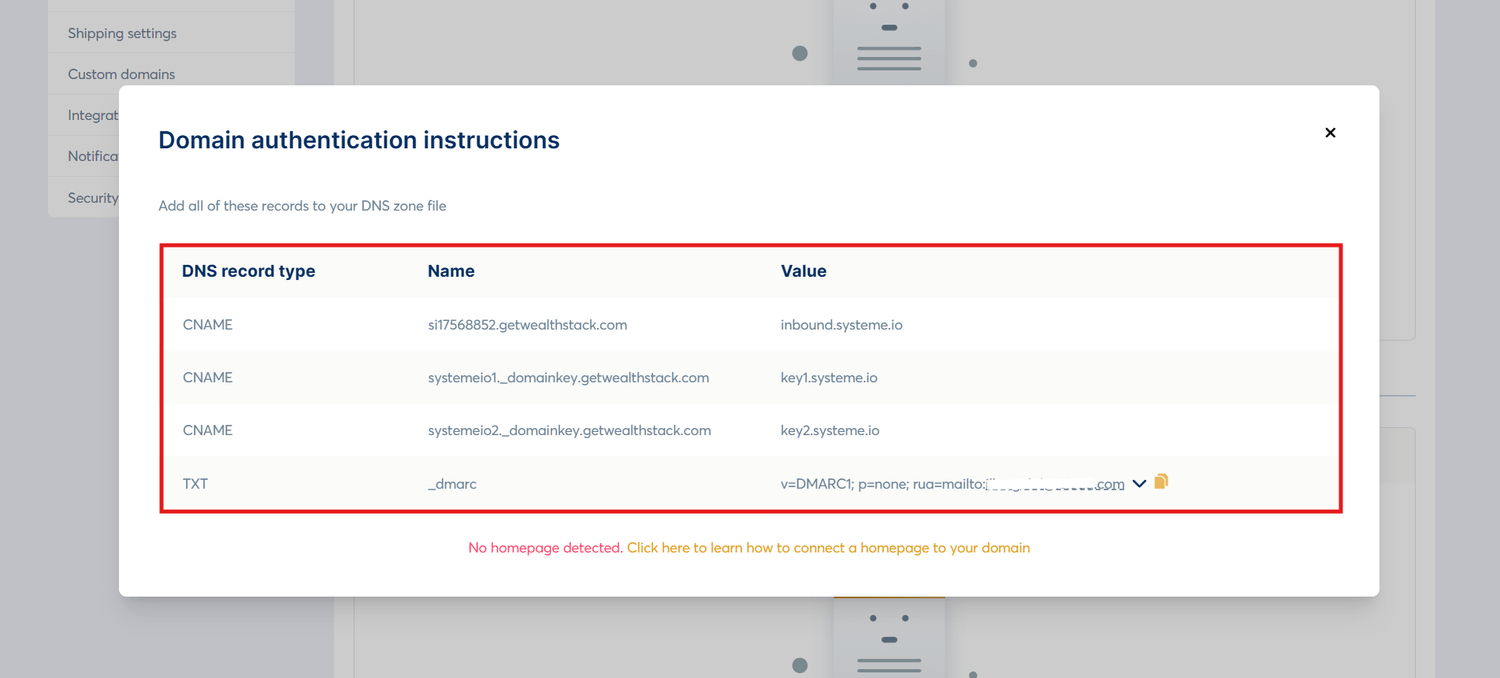
Once you save your domain, GetWealthStack will generate three CNAME records. These act as your digital signature (DKIM).
Log in to your domain registrar (e.g., Namecheap, Cloudflare, GoDaddy).
Go to your DNS Management settings.
Add three new CNAME records using the unique "Name" and "Value" provided by GetWealthStack.
Note: If your registrar automatically adds your domain name, you may only need to copy the first part of the "Name" (everything before .yourcompany.com).
Step 3: Add the DMARC Record (The "Spam Shield")
This is the final piece of the puzzle that many people forget, but it is now strictly required by Google and Yahoo.
In your domain registrar's DNS settings, create a new record.
Select Type: TXT Record.
For Host/Name, enter: _dmarc
For Value/Data, enter exactly this: v=DMARC1; p=none;
Save the record.
Step 4: Verify and Wait for "Ready"
Go back to your GetWealthStack Mailing Settings.
Your domain status will likely show as "Pending."
Click the Refresh button or check back in about 30-60 minutes.
Once the status turns to a green "Verified," your emails are officially authenticated and ready to hit the inbox!
Pro Tip: Check Your Sender Email
Make sure the "Sender email address" you use in your newsletters matches the domain you just authenticated (e.g., info@yourcompany.com). Sending from a @gmail.com address while using a custom domain will still cause deliverability issues.
Created with © getwealthstack.com